SalesScreen · iPhone + Apple TV · Salesforce · Beta
Salesforce reporting. Room-sized clarity.
Put your pipeline, service queues and recurring support topics where the team can see them. TV-friendly dashboards built from the Salesforce reports you already use.
Invitation-only TestFlight beta. Salesforce org setup required. Not yet publicly available on AppExchange.
The big-screen view
One room. A clearer picture.
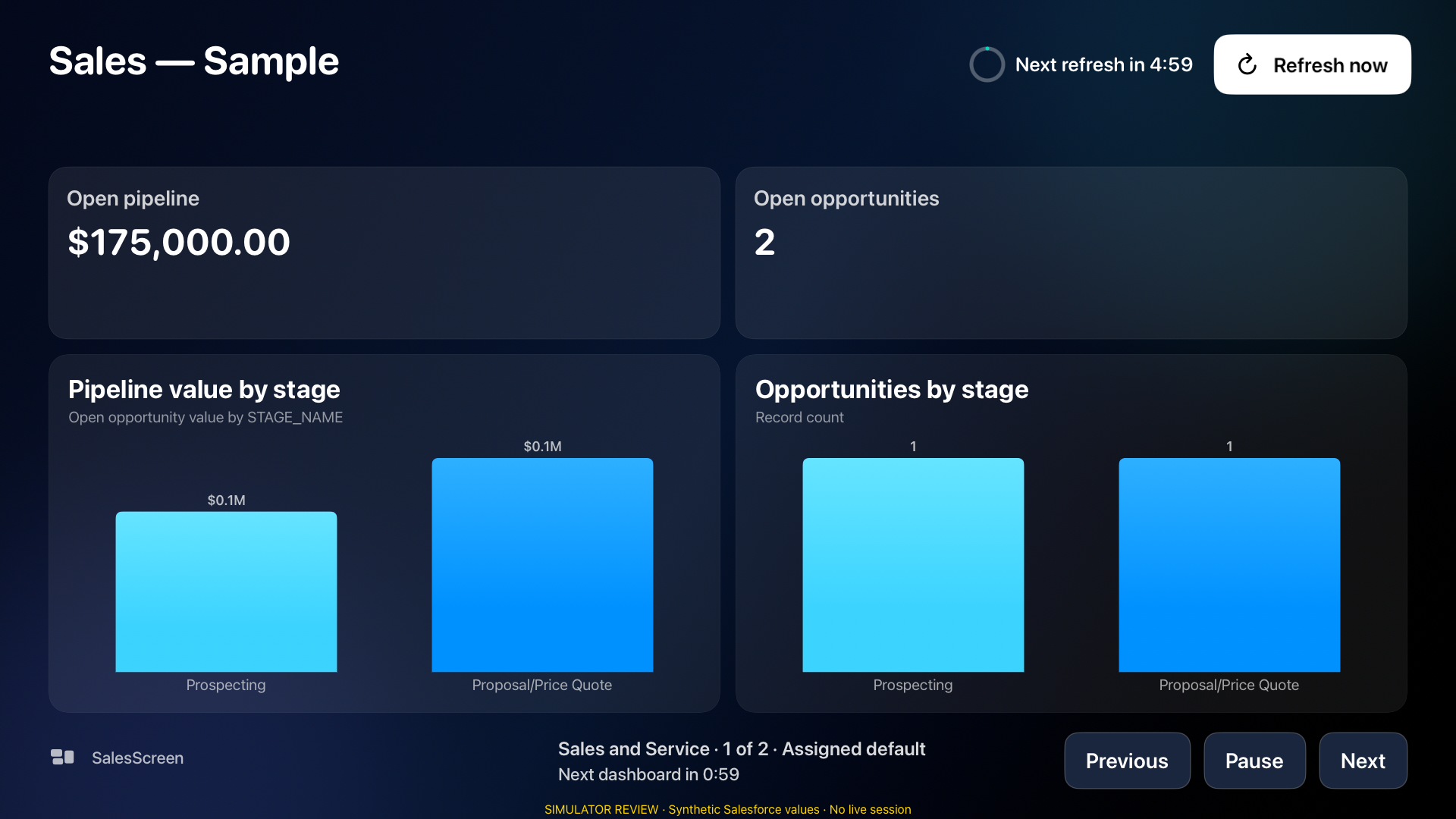
Full-screen KPIs and charts, independent dashboard and data-refresh timers, and playlist controls made for the remote. This is the actual app in the simulator, using synthetic Salesforce values—not a customer account.
Sales playlist · actual Apple TV simulator screenshot · synthetic sample data, no live session
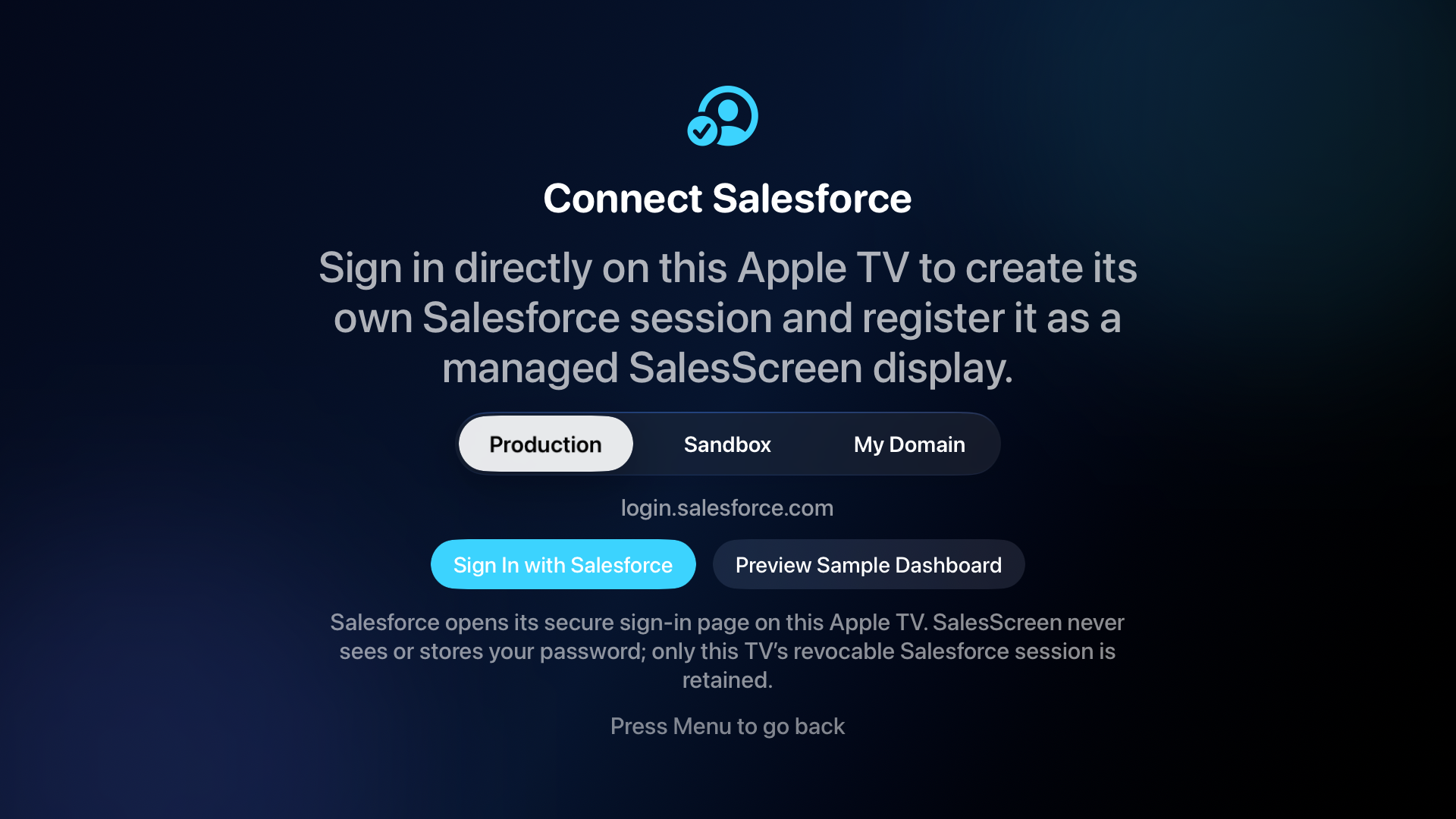
Sign in through Salesforce on Apple TV, choose an authorized dashboard or playlist, and let the display run. Set refresh and rotation separately, pause or skip with the remote, and schedule weekly playlists in the display’s timezone.
Apple TV keeps its own revocable session. Companion pairing is not required. The TV beta supports tvOS 18.6 and later.
02 / Meeting Mode
Your iPhone. Their attention.
Use system Screen Mirroring to present a SalesScreen dashboard on an AirPlay-compatible display. Keep previous/next navigation and Presentation Pointer controls on your iPhone, away from the shared dashboard.
Meeting Mode is manually controlled—not an automatic carousel. AirPlay behaviour depends on the receiver and network; the beta support page explains setup and troubleshooting.
Sales and service, side by side
More than a pipeline number.
Reports you already trust.
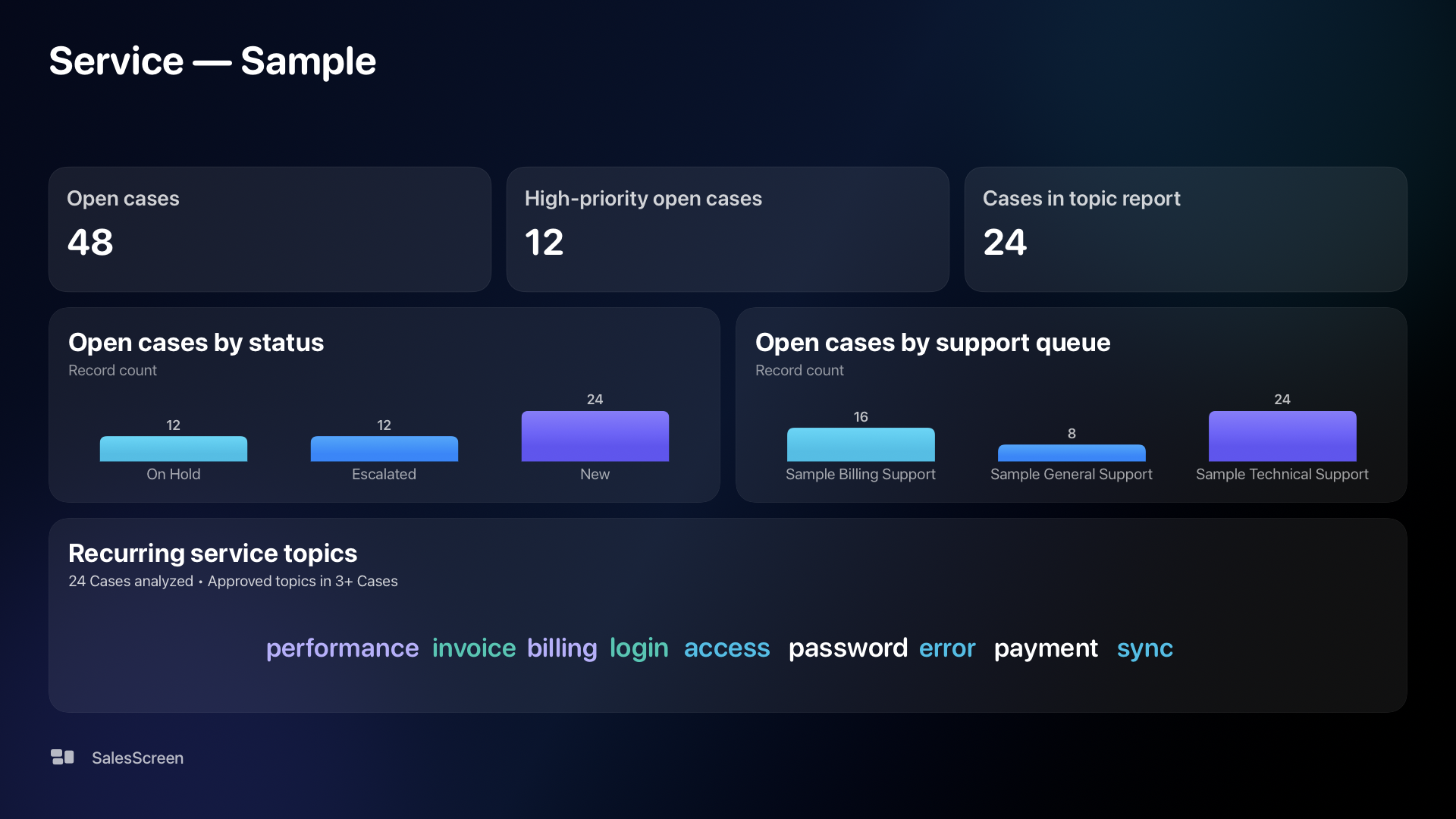
Use existing Salesforce summary reports as data sources for TV-optimized KPI and bar-chart layouts. Report filters and the signed-in user’s access still apply.
Service topics, not raw Case text.
Spot recurring issues from Case Subject and Description. Salesforce counts approved topic terms across distinct Cases; the display receives only terms and counts, not raw text. This is bounded topic matching, not AI sentiment analysis.
The right playlist, at the right time.
Manage ordered playlists, refresh and rotation intervals, organization/group/device defaults, weekly windows and per-display timezones in Salesforce. See when data will refresh without confusing it with the next dashboard.
Salesforce stays your backend.
Configuration and reports stay in your org. Apple devices connect directly to Salesforce. Protected on-device aggregate caches have finite expiry; SalesScreen does not run a separate customer-data backend.
Before you start
A little setup. A lot more visibility.
Join the beta. Contact us for availability and an invitation. TestFlight access is managed; there is no public signup link on this page.
Prepare your Salesforce org. An administrator installs the SalesScreen beta package, configures OAuth access, assigns the appropriate SalesScreen permissions, and makes the source reports available.
Choose your screen. Sign in on Apple TV for Display Mode, or use the iPhone companion with AirPlay for meetings. You can explore the bundled demo without connecting an org.
The Apple TV beta includes live report-backed dashboards, playlists, weekly schedules, refresh countdowns and service-topic word clouds. Full multi-widget builder editing is verified in our development org, but has not yet rolled out in the managed package. Live line-chart support and acknowledged remote “Refresh Displays Now” delivery remain unfinished.
Public AppExchange distribution is planned, not available today. A successful beta installation does not mean every Salesforce org is ready without administrator setup.